
Blog › 14 September 2026
The LKSA Apple Watch app — the wind on your wrist
Monday 14 September 2026 — London Kitesurfers — by Alan Jay
The Apple Watch app is out. It arrived as part of version 2, it is on the App Store now, and if you already have LKSA on your iPhone the watch app is there waiting to be installed.
The release post gave it a card of bullet points. This is the long version — every screen, and the two things it deliberately does not do. (The phone app has since moved on to version 2.1; nothing there changes the watch, so everything below is current.)
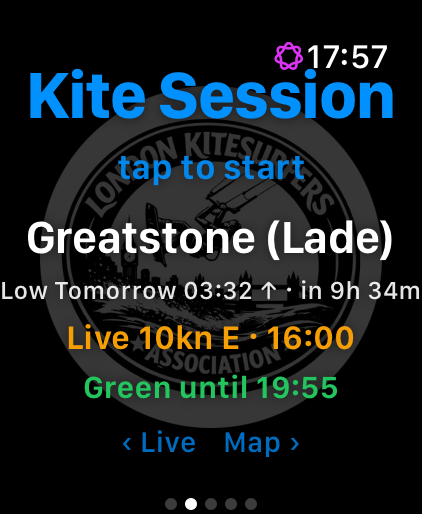
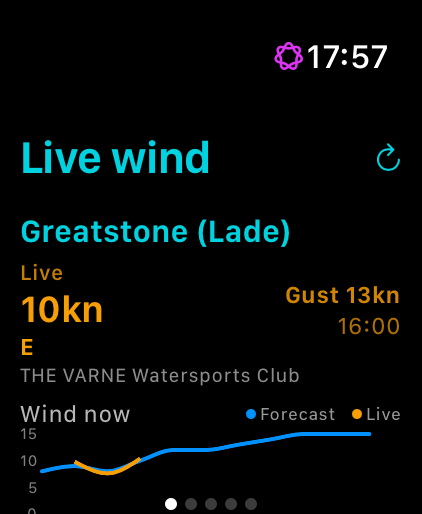
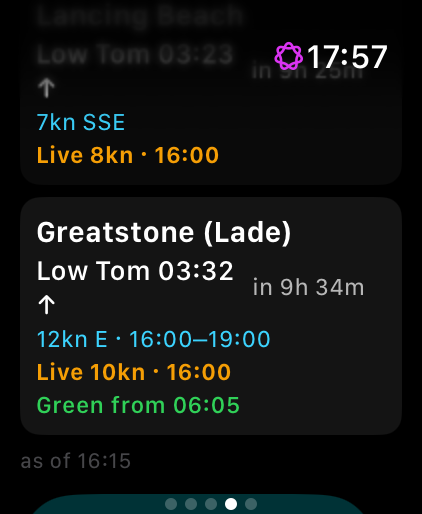
The screen you get when you raise your wrist
You land on a page headed Kite Session, with tap to start beneath it. Under that sits one spot — the one that matters right now — and the four facts you wanted:
Greatstone. Low tomorrow 03:32, in 9h 34m. Live 10kn E · 16:00. Green until 19:55.
Which spot leads is decided in a fixed order: the spot of a trip you have planned, otherwise the windiest of your chosen live-wind spots, otherwise the first of your favourites. A booked trip always wins, because that is the day’s decision already made.
The whole screen is one tap target, and the tap starts recording. Everything else is a swipe: the hints along the bottom read ‹ Live and Map ›. There are five pages in all — live wind, the start screen, the spot map, tides, and your recent sessions — with the start screen in the middle so the two you use most are one swipe away in either direction.
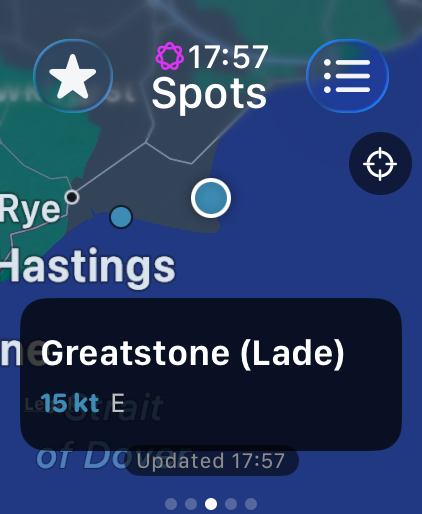
The spot map, fetched by the watch itself
The map page is titled Spots, and it is the part that changes how the app feels: the watch fetches its own data over Wi-Fi or mobile. Phone off, phone flat, phone in the boot of the car — the map still fills in.
Pins are coloured by today’s verdict, with a small white dot marking a genuine GO day so a merely greenish pin cannot be mistaken for one. The Digital Crown walks them west to east, which on a 41 mm screen is a great deal more reliable than aiming at them. The card at the bottom carries the name, the peak wind, the direction and a GO badge; tapping the card — not the pin — opens the spot. A toolbar button cycles the filter through Primary spots, Exclude far spots and All spots.
The other toolbar button swaps the map for a list, and that list is not a stylistic choice. Apple’s map tiles stream from the network and cannot be cached offline, so on a beach with no signal the map is a grey grid while a list of cached spots still tells you everything. The app switches to it on its own whenever the last fetch failed or the cached data is from yesterday — and says which, in a status line reading Updated 16:04, offline · 08:30 or Yesterday’s data.
A spot’s day
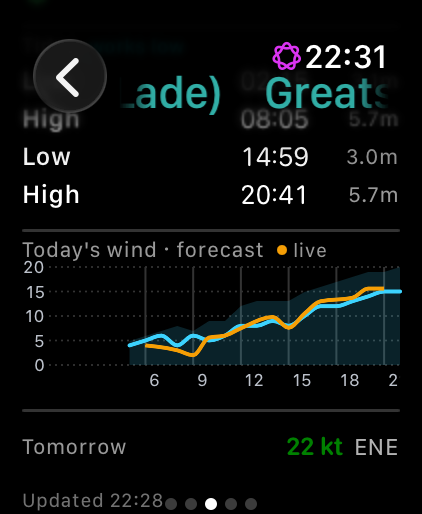
Open a spot and it is ordered the way you would ask the questions standing in a car park. Can I kite here today — the peak wind, the direction, a GO badge, the working window. What is it doing now. Is the beach accessible. When are the tides. What did the day look like.
The tides come with heights and a note saying whether the spot works low or works high. Under them, today’s forecast is drawn as a cyan line with the gust shaded behind it, and today’s station readings overlaid in amber. Below the chart, Tomorrow 22 kt ENE, so you can start thinking about tomorrow while you are still drying off. A Works: SW W NW line under the title names the directions the beach actually takes.
Live wind, and where it came from
The live-wind page ranks your spots by what is blowing right now, with a booked trip’s spot pinned to the top whatever the wind is doing.
Each spot shows the reading, its direction, the gust and the time it was taken — and, the part that matters, the name of the station it came from, on its own line underneath. On the screenshot above that is The Varne Watersports Club. These are real anemometers near the beach rather than on it, collected on a schedule, which is why the watch always tells you which one and when.
When the reading’s direction is not one of the spot’s working directions, a red OFFSHORE lozenge appears next to the number. It is the one piece of shouting in the whole app, and it earns it.
Under each spot, a small chart draws forecast and readings on the same axes for the whole day. When the amber line has been sitting under the blue one since lunchtime, you have learned something before you load the car.
Two complications
The app puts a number on your watch face. The one to add is Best kite spot — today’s best LKSA spot with its wind and its next tide. Its companion is Next trip: your next planned session, a countdown, when to leave and the tide when you get there.
To add one, press and hold your watch face, tap Edit, swipe across to the complications screen, tap a slot and scroll to LKSA. Both complications fit the inline, circular, corner and rectangular slots, so they will go almost anywhere. They also carry a relevance score, which means the Smart Stack surfaces them on its own — highest on a GO day, and inside the last couple of hours before a trip.
The complication fetches the same feed the watch app does, so it keeps working with the phone off and falls back to its last good copy when there is no signal. The tide entries are built ahead of time, so Next tide advances on its own without the watch waking up for it.
(There is a third, Trip spot wind, which shows today’s forecast for your trip’s spot. Worth knowing about; the two above are the ones most people want.)
Recording, and the turn counter
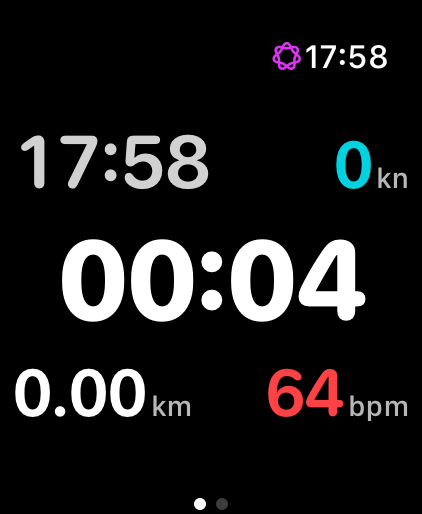
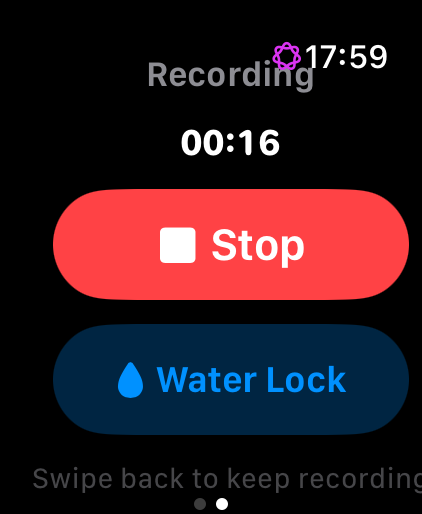
Tap the start screen and you are recording. Water Lock comes on automatically — you are about to get wet — and a turn of the crown clears it and ejects the water.
On the water you get the time of day and your speed across the top, elapsed time huge in the middle, and distance and heart rate along the bottom. Under the timer, a live turns count.
That counter is a wrist-sized version of what the phone does afterwards: it logs a turn when your smoothed heading swings more than 45 degrees off the rolling ten-second average, only while you are moving at 6 knots or more, with an eight-second debounce so one carve cannot count twice. It is glanceable feedback, not analysis — the phone’s engine recounts it properly and replaces the number once the session syncs.
Stop is on the second page, so a stray tap cannot end your session; you swipe to it deliberately, and it says swipe back to keep recording underneath. The finished workout is written to Apple Health, and the iPhone picks it up and adds the full statistics.
Your last five sessions
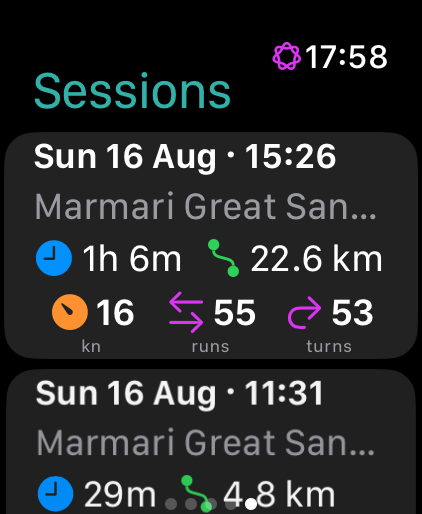
The last page keeps your last five sessions — time, distance, top speed, runs and turns, in three labelled columns. They come from two places: whatever your phone has synced across, and the watch’s own recordings, which appear the moment you stop. Anything under five minutes or a hundred metres is not a session and never makes the list.
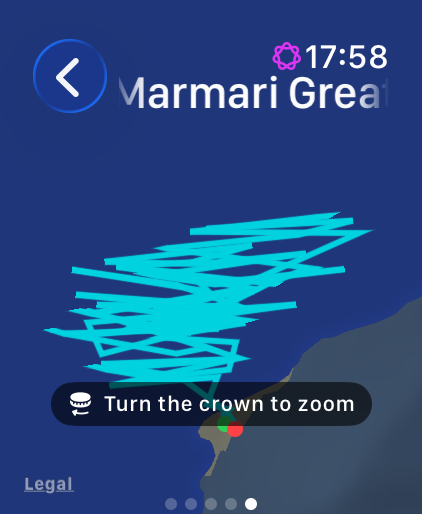
Tap one and the track is drawn on the watch itself, green dot at the start, red at the end, with a hint reminding you the crown zooms it. Under each session sits a second row — Camber today — which opens that spot’s page as it stands right now.
Away from the south-east
Take the watch somewhere else and it notices. More than 150 km from London it looks for the strongest community spot near your fix — the ones you and everyone else have added — and puts a Best local row at the top of the live-wind page with its wind now. Record a session at one and its row links through to that spot’s page.
It does not measure jumps
Worth saying plainly, because it is the first thing people ask.
The watch recorder has no jump detection, and it does not claim a height it cannot measure. What it does do is stay out of the way: it never takes over the workout session, so you can leave LKSA recording in the background and run Hoolan or Surfr on top for jumps. Both save separately, and if the jump app writes its workout to Apple Health, LKSA imports that session afterwards.
Whether the watch can do better than that is an open question, and it is one I would like to answer with data rather than a guess. If you would run a test build so I can see what the Watch actually produces mid-jump, say so in the WhatsApp channels — especially if you kite somewhere I don’t.
As ever: no LKSA account, no LKSA login, no ads, no tracking.
See you on the beach.
Weather data by Open-Meteo.com, with model data from the Met Office, ECMWF, NOAA, DWD, Météo-France and MET Norway. Station readings are recent observations from real anemometers near — not on — each beach. Forecasts and live readings are guidance; conditions on the water are yours to judge.